SCREENLOGIC UPDATE GUIDE
A fresh start for your
ScreenLogic adapter
Need to update your Pentair ScreenLogic firmware? Start here for the right download, simple steps, and help along the way.
A computer and a connection to your adapter’s home network are required
A QUICK CHECK FIRST
Updating the app and updating the adapter are different
Your phone app talks to the ScreenLogic box at home. Updating MyPool in the app store updates the app; the adapter’s firmware is updated separately from a computer.
- Check the adapter version first. If it already reports Build 738, you do not need to flash it again.
- Use a computer on the same router as the adapter. Pentair’s instructions recommend an Ethernet connection.
- Keep the adapter powered and the computer awake throughout the update.
This guide is for ScreenLogic protocol adapters. Pentair warns that this firmware must not be installed on commercial IntelliChem equipment.
THE RECOMMENDED ROUTE
Update ScreenLogic on Windows
Get the official adapter updater
On Pentair’s downloads page, use Step 1: Update Your Protocol Adapter and choose the PC download.
Open Pentair’s downloadsChoose your local adapter
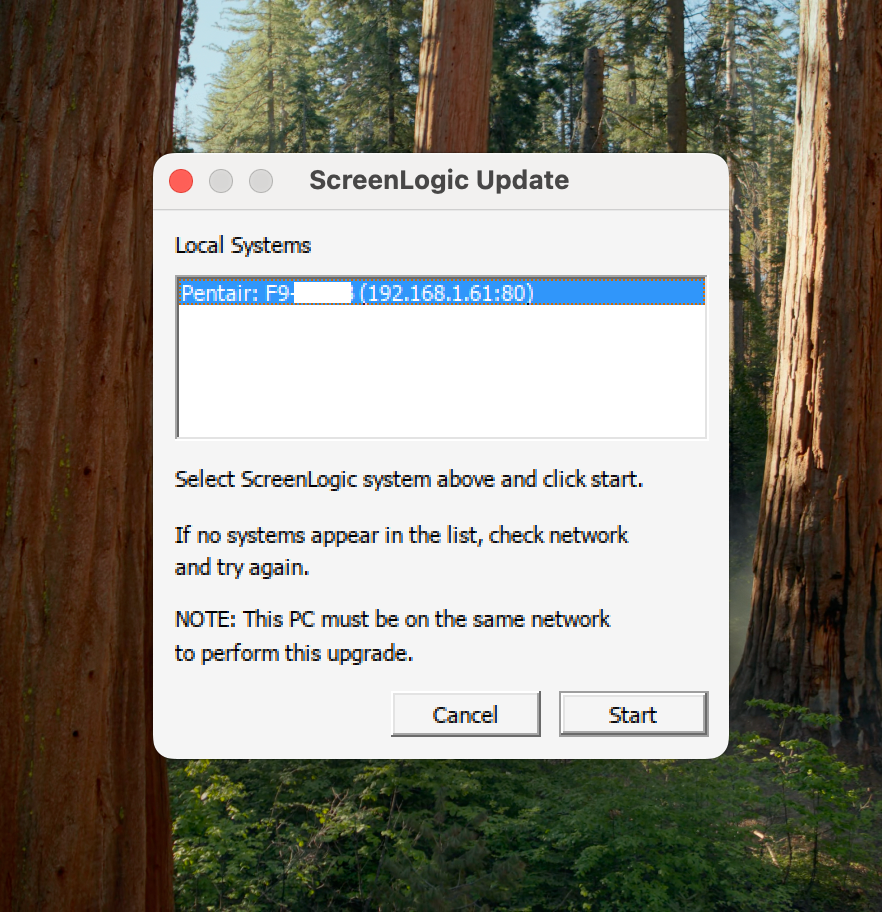
Run the updater and match the adapter shown under Local Systems to the ID on your ScreenLogic box. If it is missing or unnamed, stop and check the network before proceeding.
Let the update finish
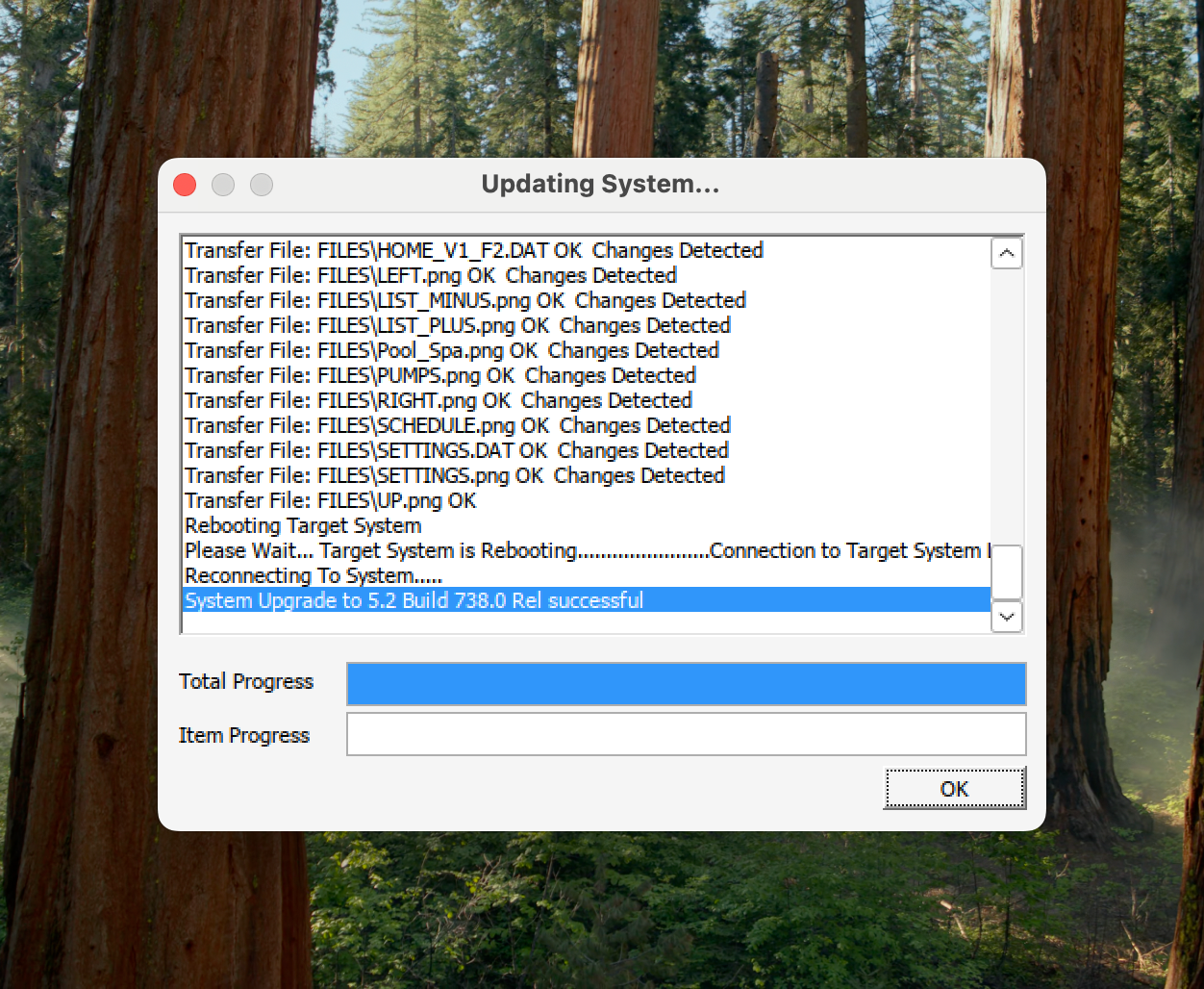
Start the update and wait for the tool’s success message. Then reconnect and check the reported version before using MyPool again.
NEW · EXPERIMENTAL DESKTOP UPDATER
A new way to update, from MyPool
Our desktop helper opens a simple updater in your browser. It finds your local adapter, installs the official firmware and adapter files, then checks the version after restarting.
You need Java 17 or later, a current Chrome, Edge, or Firefox browser, and a computer on the adapter’s network. Get Java from Eclipse Temurin if needed.
Download MyPool’s updaterVersion 0.1.0 · ZIP download, about 20 MB · No MyPool purchase required
Unzip the whole folder
Keep the files together. The browser page and helper are both included.
Start the helper
On Mac, open Start-MyPool-Updater.command. On Windows, open Start-MyPool-Updater.bat. Follow the included README if Java is not installed.
Open the local updater page
Visit http://127.0.0.1:8789 on that computer, match the adapter ID to your box, and follow the prompts. Keep the helper running and the adapter powered until the final version check finishes.
This early release has completed a full same-version update on an Apple Silicon Mac. The Windows launcher has not yet been verified on a physical PC; the official Pentair Windows updater remains available above. Download checksum
FOR MAC OWNERS
Which Mac updater should I use?
Pentair lists its Mac updater for macOS 10.8–10.14. It is not compatible with macOS Catalina 10.15 or later. On a newer Mac, try the experimental MyPool updater with Java 17 or later, or use the official Windows tool.
We also have an existing Mac package that runs the Windows updater through a compatibility layer. It is a separate download, and compatibility can vary on newer Macs. Contact us if you need help choosing a route.
Existing MyPool Mac package and walkthrough
This is the earlier desktop package. It is not a firmware update that runs entirely in your browser.
Download the existing Mac packageStep 1: Download the App
Download the new macOS app here https://downloads.getmypoolapp.com/ScreenLogicUpdaterCBA.zip
Step 2: Run the App
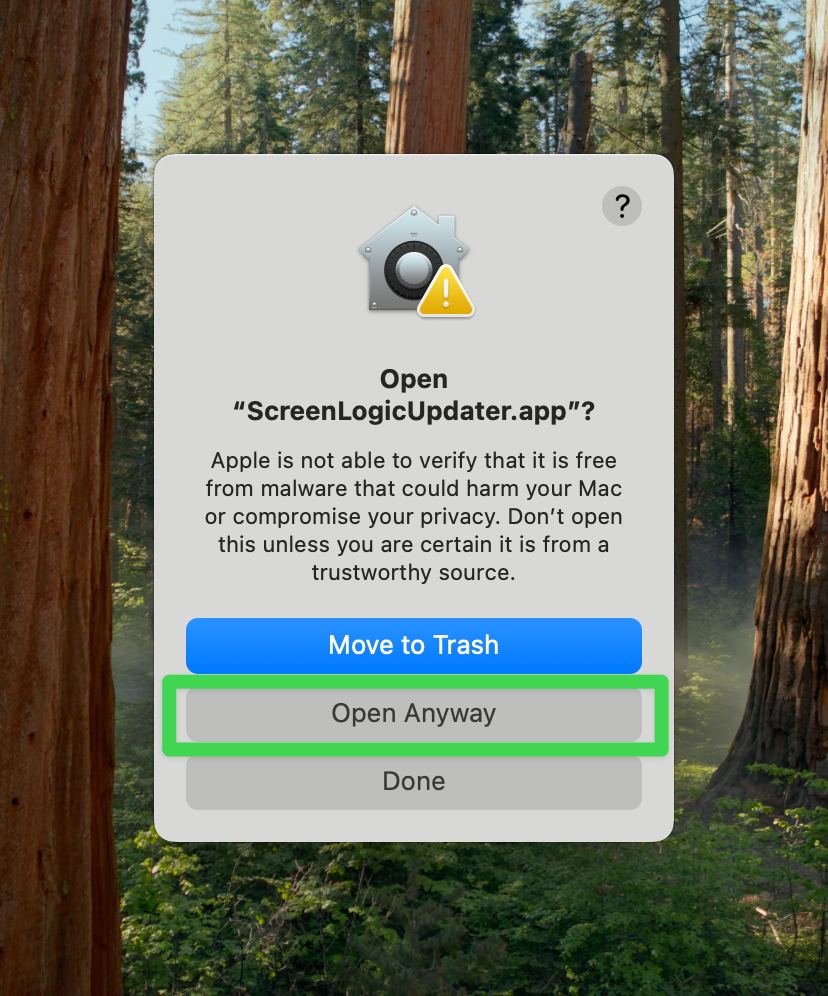
Unzip the file and double click the mac app. You may see an error. Click "Open Anyway"
Step 3: Security Settings
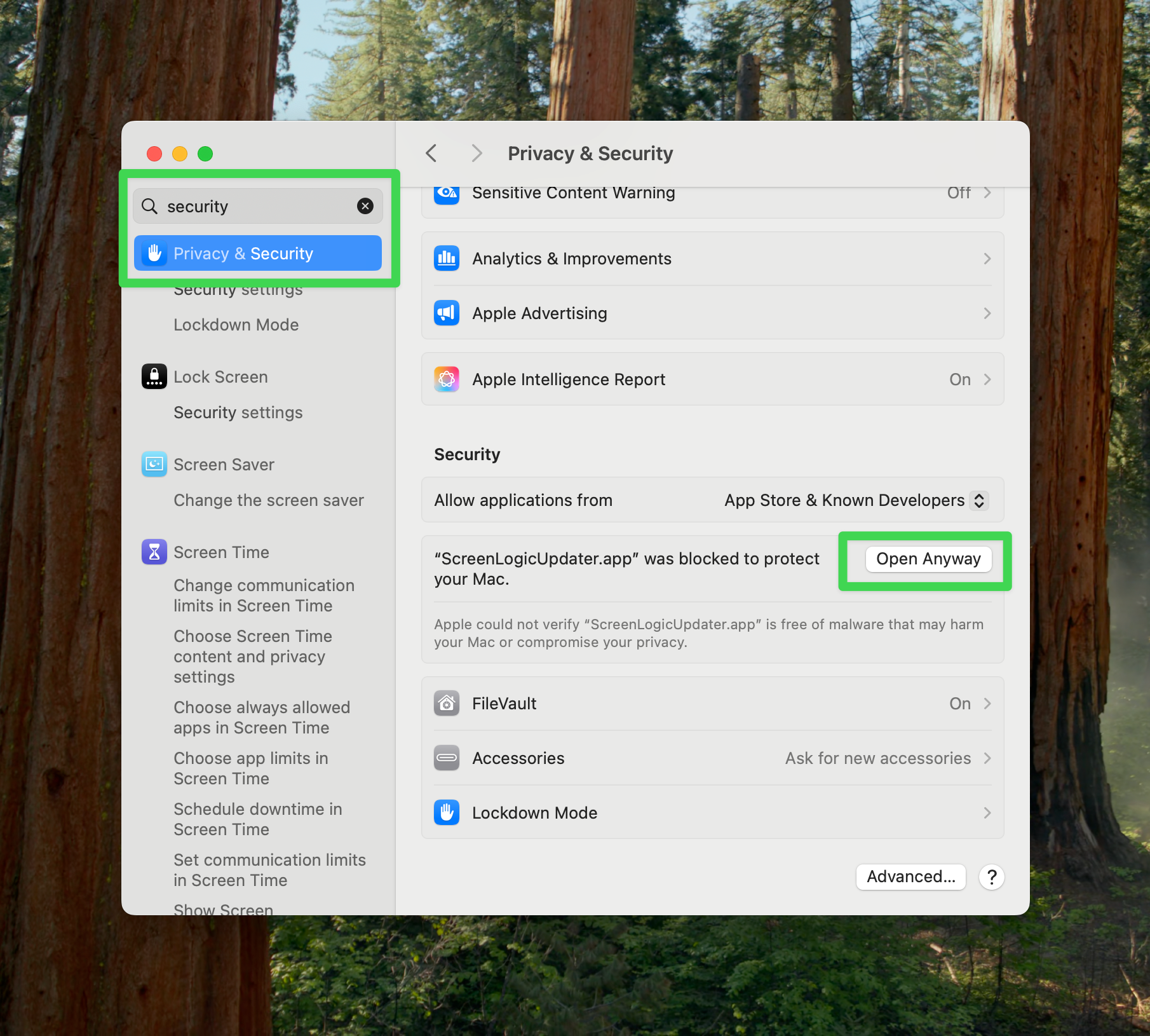
You may have to open your mac preferences and go to the "Privacy and Security" screen
Step 4: Terminal Command
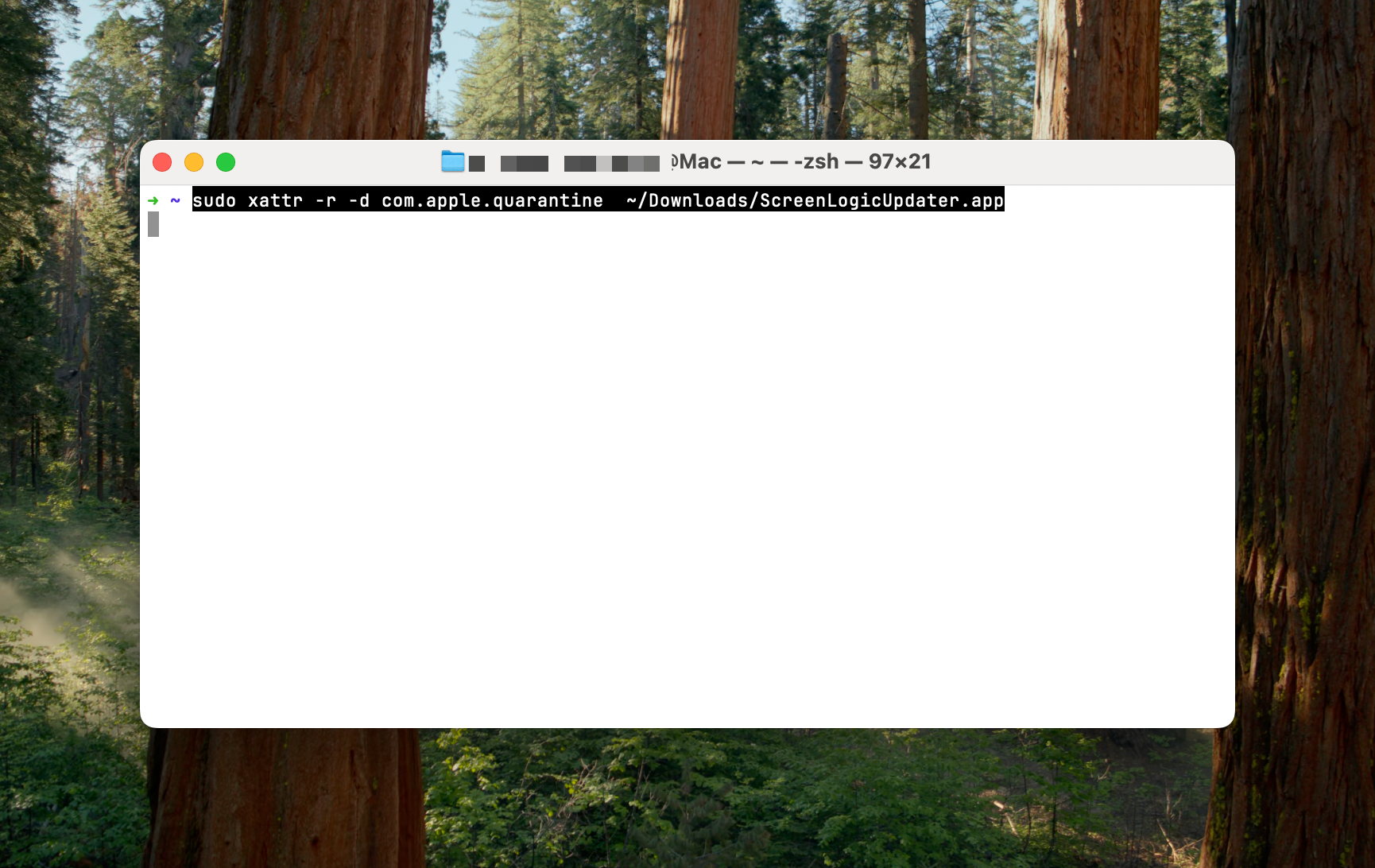
Then open up your "Terminal.app" and enter this command (be sure to update the command if it wasn't downloaded/unzipped to your downloads folder)
Note:
If the package does not open or the command fails, stop and contact us for help. Confirm that you downloaded the package from the link above before changing any settings.
Step 5: Run the Updater
Double click the app and wait about 5-10 seconds and the pentair software should start and detect your pentair adapter (be sure it's on the same network) and click the start button.
Note:
You may get popups that ScreenLogicUpdater needs to access the folder it's located in OR that ScreenLogicUpdater needs to access the local area network. If you get those, please accept them and then close and re-run the app. The app will not work if it was opened before those permissions were granted.
Step 6: Wait for Completion
This could take a few minutes so grab some coffee. You should see this when it's finished!
A LITTLE HELP
ScreenLogic update questions
Can I update the adapter from my iPhone or Android phone?
The updater described here runs on a computer on the adapter’s local network. Installing MyPool on your phone does not flash the adapter.
Why does the updater show no local systems?
Check that the computer and adapter use the same router. Guest Wi-Fi, a VPN, or a separate network can prevent local discovery. Follow Pentair’s Ethernet instructions and try discovery again. Do not start an update against an unidentified adapter.
Will a firmware update fix zero temperature readings?
Not necessarily. The app can reach the adapter while the adapter is missing data from the outdoor panel. If readings stay at zero, send us a support request so we can help check that connection.
Is MyPool made by Pentair?
MyPool is an independent app for compatible ScreenLogic systems. The official firmware tools linked above are provided by Pentair. You can update your adapter without buying MyPool.
Stuck along the way?
 MyPool
YOUR POOL, BACK IN YOUR HANDS
Make more of your
ScreenLogic system
Control your pool, spa, lights, and heating from a clean, simple app. MyPool works with compatible Pentair ScreenLogic systems on iPhone, iPad, and Android.
Compatible hardware and a MyPool subscription are required for pool control
Explore MyPool’s features